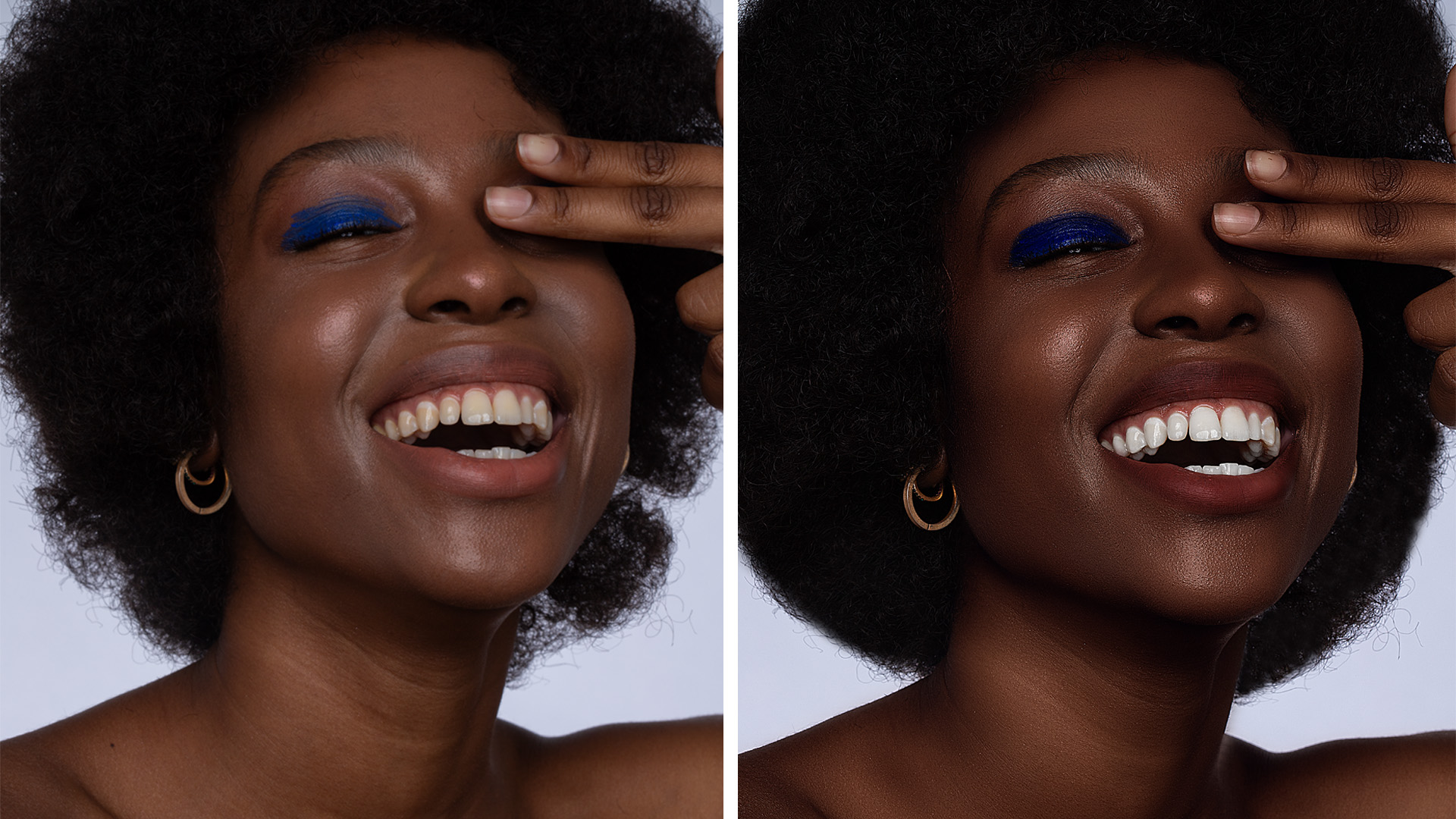
Retouching is often the most time-consuming part of a photographer’s workflow. Spending twenty minutes per image on micro-blemishes, teeth whitening, and skin contouring is fine for a high-end magazine cover, but for a session of fifty portraits, it’s a recipe for burnout.
Enter the Retouch4me Photoshop Panel. This tool bridges the gap between manual precision and AI speed by combining Cloud Retouching with On-Device Plugins. In this guide, we’ll walk through how to create a single “One-Click” Action that automates your entire retouching process.
Understanding the Hybrid Engine: Cloud vs. Local
Before we dive into the steps, it’s important to understand how the panel operates:
- On-Device Retouch: This utilizes the Retouch4me plugins installed directly on your computer (like Heal, Skin Tone, or Dodge & Burn). It’s fast and uses your own hardware.
- Cloud Retouch: This sends the image to Retouch4me’s servers to process. This is ideal for using specialized tools you might not have installed locally, such as Fabric or Clean Backdrop.
By combining both in the panel, you get a comprehensive edit in a single pass.
Step-by-Step: Building Your One-Click Action
1. Prepare Your Action Set
Open Photoshop and go to Window > Actions. Click the folder icon to create a new set (name it “AI Workflows”) and then click the “Plus” icon to create a new action named “Master One-Click Retouch.” Photoshop is now recording your steps.
2. Create a Safety Layer
Always start by duplicating your background layer (Cmd/Ctrl + J). This ensures your retouching is non-destructive, allowing you to mask out or lower the opacity of the AI’s work later if needed.
3. Configure the Retouch4me Panel
Open the panel via Window > Extensions or Plugins. You will see a list of available AI “modules.” To create the ultimate workflow, enable the following common plugins:
- Heal: This automatically removes skin blemishes while preserving texture.
- Dodge & Burn: This smooths out skin transitions and “patchiness” without losing the natural skin grain.
- White Teeth: Enable this to specifically target the teeth. The AI identifies the mouth and applies a natural whitening effect without affecting the lips or skin.
- Eye Brilliance: This adds a subtle “pop” to the iris and clears redness in the whites of the eyes.
4. Selecting the Source (Cloud vs. Device)
Within the panel settings, you can toggle which plugins run locally and which run via the Cloud. If you own the “Big Three” (Heal, Skin Tone, D&B), set those to Device. For extra polish like Skin Mask or Portrait Volumes, you can toggle the Cloud option.
5. Output Settings
This is the most crucial step for professional results. Ensure the “Output to Layers” option is selected in the panel. This forces the AI to place each correction on its own layer rather than flattening it onto your image.
6. Run and Save
Click the “Process” button. Once the AI finishes and the new layers appear in your stack, go back to your Actions panel and hit Stop.
The Result: Total Control in One Second
Now, the next time you open a portrait, you simply select your “Master One-Click Retouch” action and hit Play.
Pro-Tip: Because we recorded the action to output separate layers, you can “mix” the retouch. If the White Teeth plugin is a bit too bright for a specific subject, just click that specific layer and drop the opacity to 50%. You get the speed of AI with the nuance of a human editor.
By integrating the Retouch4me hybrid panel into a Photoshop Action, you aren’t just retouching faster—you’re freeing up hours of your week to get back behind the camera.